Pet Hub and Collection
What it is
Choose the pet that follows you in Your Pets. Use Pet Details to inspect it, rename it or change its appearance.
Pet Details gathers the selected pet's identity, abilities, family resource, growth and breeding information, bond, mastery record and rarity path. Its buttons also connect to talents, renaming, skins, permanent items and withdrawal. Read the pet's identity before using an irreversible progression action, especially if you own duplicate pets with similar names.
Quick facts
- Nickname maximum: 16 characters
- Pet level ceiling: 100 levels
- Action-bar resource segments: 8 segments
- Navigation refresh: 0.5 seconds
- Other-player visual range: 24 blocks
- Nest alternation: 2 seconds
In-game pictures
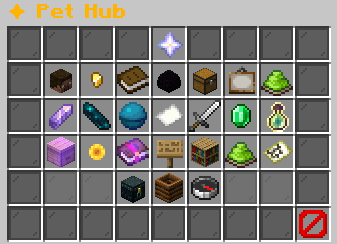
Click to open.FavoritesQuickly find your saved companions.
Click to open.Pet CodexBrowse discovered and hidden pets.
Click to open.Egg HatcheryOpen legacy configured egg types.
Click to open.Pet ItemsAttach items that strengthen pets.
Click to open.Pet SkinsUnlock and apply cosmetic looks.
Click to open.Pet Visibility: ShownToggle all pet visuals.Click to show less.Example state · bracketed values depend on your game.Rarity UpgradeUpgrade pets with shards and coins.
Click to open.Shard WorkshopCombine shards or recycle unused pets.
Click to open.✦ Breeding DenPair idle female and male pets.Produce signed, lineage-aware eggs.
Click to open.Bounty BoardLegendary Ascension quests.
Click to open.Raid BossesView active fights and rewards.
Click to open.Pet ScoreView collection score and progress.
Click to open.EXP ShareSelect eligible passive EXP recipients.
Click to open.✦ IncubatorsBrowse your placed incubators.Local access requires an 8-block range.
Click to open.Login StreakTrack UTC days and egg milestones.
Click to open.Ability CodexBrowse abilities by family, tier, or trigger.
Click to open.Pet Labels: ShownHide only your own pet labels.Pet heads stay visible.Click to toggle.Example state · bracketed values depend on your game.Buff GuideLearn pet buffs and debuffs.
Click to open.✔ Nest TrackingShows nearby wild nests in your action bar.Alternates with coordinates every 2 seconds.Click to disable.Example state · bracketed values depend on your game.Pets & Family GuideSee your pets and their families.Find biomes for incubating their eggs.
Click to open.Pet DeliveryCollect earned items and purchases.Withdraw one stack per empty inventory slot.
Click to open.Recycle PetsChoose a pet to exchange for rarity shards.Review its exact reward before confirming.Confirming permanently deletes the chosen pet.
Click to open.Great DiscoveryView the one-day family discovery event.Leaderboard, your rank, and top-three prizes.
Click to open.CloseClose this menu
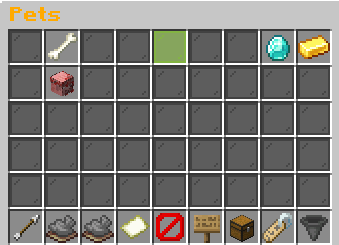
Level up your pets faster by gainingXP in their favourite skill!
Active pet: 1/1Summoned: None
Left-click a pet to summon it!Example state · bracketed values depend on your game.Active PetNo pet is currently summoned.
Left-click any pet below to summon it.FavoritesView your favorite pets.Click to open.Exp SharingLet your pets gain Pet Exp withoutthem being actively deployed!
Click to view![Lvl level] [Pet name and gender][Pet type]Family: [Family]Family Type: [Family type]Gender: [Gender] | Gen [generation]Breeds: [breeds]/3
[in-game value] XP: +[in-game value]%
??? [UNCOMMON]Unlocks at Uncommon
??? [RARE]Unlocks at Rare
??? [EPIC]Unlocks at Epic
??? [LEGENDARY]Unlocks at Legendary
??? [MYTHIC]Unlocks at Mythic
Progress to Level [next level]: [progress]%[XP progress bar] [XP]/[XP required]
Example state · bracketed values depend on your game.BackReturn to the Pet Hub.Previous PagePage 1/[pages]No previous page.Example state · bracketed values depend on your game.Next PagePage 1/[pages]No next page.Example state · bracketed values depend on your game.Page 1 / [pages]Showing [in-game value] pet(s).Filter: AllSort: Level (High to Low)Example state · bracketed values depend on your game.CloseClose this menu.Pet visibility
▶ Show all pets Hide all pets Only your pet
Pet name tags: Enabled
Left-click to switch visibility!Example state · bracketed values depend on your game.Pet ItemsAttach items to your pets.Click to open.FilterCurrent: All
Click to cycle rarity!Shift-click to toggle favorites only!Example state · bracketed values depend on your game.Sort
Rarity Alphabetical Pet Exp Skill Favorites Lowest Level Lowest Rarity
Right-Click to go backwards!Click to switch sort!
Pictures show a captured example. Your pets, rewards and timers can change.
More in-game pictures (2)
More in-game pictures
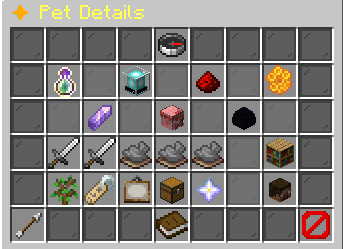
Breeding identityGender: [in-game value]Generation: [generation]Lifetime breeds used: [breeds] / 3Example state · bracketed values depend on your game.Pet BonusesBase bonuses at this level and rarity:[in-game value] XP: +[in-game value]%[in-game value] duration: +[in-game value]s
Activate this pet to receive its bonuses.Example state · bracketed values depend on your game.Family ResourceNo family resource is configured for this pet.Keep this pet active to build its resource.Each ability lists its cost or threshold.Example state · bracketed values depend on your game.BondBond: [in-game value] / 100Relationship: [in-game value]Keep this pet active while playing to build bond.Bond can decay while the pet is inactive.Example state · bracketed values depend on your game.Next Rarity RequirementsNext step: shard upgradeNext rarity: [Next rarity]Requires matching shards, coins, and time.The upgrade menu shows exact costs before confirming.Shard upgrades stop at Epic.Use Open Rarity Upgrade in the action row.Example state · bracketed values depend on your game.[Pet name and gender]Rarity: [Rarity]Level: [level] / 100Family: [Family]Status: InactiveFavorite: NoSkin: [Skin]Nickname: [in-game value]Example state · bracketed values depend on your game.Mastery RecordStatus: Not recordedUnlock requirement: Mythic at level 100.Mastery currently records ownership only.It adds no passive stat bonus.Example state · bracketed values depend on your game.Uncommon Slot: [Stored ability name]Effect: [Stored ability effect]
Trigger: [Stored ability activation]Requires: [Stored ability requirements]Chance: [Stored trigger chance]Cooldown: [Stored cooldown]Example state · bracketed values depend on your game.Rare Slot: [Stored ability name]Effect: [Stored ability effect]
Trigger: [Stored ability activation]Requires: [Stored ability requirements]Chance: [Stored trigger chance]Cooldown: [Stored cooldown]Example state · bracketed values depend on your game.Epic LockedRequires Epic pet rarity.Reach that rarity to unlock this ability slot.Example state · bracketed values depend on your game.Legendary LockedRequires Legendary pet rarity.Reach that rarity to unlock this ability slot.Example state · bracketed values depend on your game.Mythic LockedRequires Mythic pet rarity.Reach that rarity to unlock this ability slot.Example state · bracketed values depend on your game.Open Ability CodexSlots run from Uncommon to Mythic.One ability occupies each rarity slot.Hover an ability to read its exact effect.Click to browse all abilities.Choose TalentsView talent branches and their unlock requirements.Click to open this pet's talent tree.Rename PetEnter a nickname in chat.Maximum length: [in-game value] characters.Type clear to remove the nickname.Click to enter a name.Example state · bracketed values depend on your game.Change SkinCurrent skin: [Skin]Browse skins and apply an unlocked look.Click to open this pet's skins.Example state · bracketed values depend on your game.Manage Pet ItemEquipped: [Equipped item]Attach or remove an item from this pet.Click to manage equipment.Example state · bracketed values depend on your game.Open Rarity UpgradeChoose this pet in the upgrade menu.Review its shard cost, coins, and wait.Shard upgrades stop at Epic.Click to open rarity upgrades.Withdraw Pet as ItemConvert this pet into a tradeable head.Saves the head to your Pet Delivery.The pet leaves your collection until redeemed.Click to withdraw this pet.BackReturn to the previous menu.How to Read This MenuInformationTop cards explain growth, bonuses, resource, and bond.Your pet is in the centre.AbilitiesThe five slots are ordered by rarity.Each tooltip explains effect, trigger, cost, and timing.ActionsThe row below the abilities contains pet actions.Only the next relevant rarity route appears.CloseClose this menu.
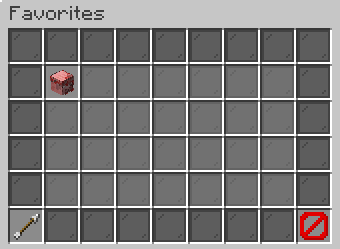
[in-game value] XP: +[in-game value]%
??? [UNCOMMON]Unlocks at Uncommon
??? [RARE]Unlocks at Rare
??? [EPIC]Unlocks at Epic
??? [LEGENDARY]Unlocks at Legendary
??? [MYTHIC]Unlocks at Mythic
Progress to Level [next level]: [progress]%[XP progress bar] [XP]/[XP required]
Example state · bracketed values depend on your game.BackReturn to the previous menu.CloseClose this menu.
How to start
Open /pets, then Your Pets. /pets collection and /pets manage open the same collection route. The direct /pets activate command accepts a matching pet identifier, nickname or full display name. Use the collection when duplicates make a typed name ambiguous. The visible entry lets you choose the pet you mean.
Left-click an idle pet to activate it. Shift-left-click toggles its favorite status. Middle-click or shift-right-click opens Pet Details. Right-clicking an ordinary idle collection entry starts withdrawal, so use shift-right-click when your goal is inspection. Clicking the active-companion display desummons the active pet unless you use a details click.
Steps
- Activate the pet you want from Your Pets and confirm it appears in the summoned-pet area.
- Shift-left-click pets you want to find quickly later, then open Favorites to see that selection.
- Use the rarity filter to cycle through rarities. Shift-click the filter to toggle favorites-only results.
- Use Sort to move forward through its choices. Right-click Sort to move backward.
- Shift-right-click your pet. Choose Rename Pet to enter a nickname, or use /pets rename with the active pet.
- Open Change Skin to inspect cosmetic choices. Toggle Pet Visibility or Pet Labels from the hub when adjusting appearance.
Reference
| Control or setting | Value |
|---|---|
| Nickname maximum | 16 characters |
| Pet level ceiling | 100 levels |
| Action-bar resource segments | 8 segments |
| Navigation refresh | 0.5 seconds |
| Other-player visual range | 24 blocks |
| Nest alternation | 2 seconds |
What can go wrong
Activation fails for a locked pet, a missing pet species, a pet belonging to another owner or an active activation timer. Selecting the pet already active does not create a second companion. Activating a different pet first desummons your previous companion and removes the newly active pet from EXP Share selection.
A nickname cannot be blank after removing unsupported formatting or longer than 16 characters. A blocked name is rejected. MiniMessage formatting also fails when formatting is disabled for nicknames. A skin purchase needs the displayed price and a working economy. Applying a skin requires the matching unlocked cosmetic. An empty skin list is not a reason to repeat the purchase click.
Worked example
You own Pebble Whelp and Tidepool Fry. Activate Pebble Whelp, then mark Tidepool Fry as a favorite. The favorite stays idle. Open Favorites to find it, return to the collection and activate it. Tidepool Fry now replaces Pebble Whelp as your companion. This change also creates a fresh Tide resource meter rather than transferring Ore Charge between families.
Next, rename the active pet through Pet Details using a name within 16 characters. Hide Pet Labels from Pet Hub. The pet head remains visible, while its label is hidden for you. /pets actionbar toggles navigation information. The equipped pet's resource display remains enabled. These preferences solve different presentation needs.
More to know
Sort and rarity filter preferences are saved. A filter can hide an owned pet from the current grid without removing it from the collection. Check the filter and favorites-only toggle before concluding that a pet disappeared. Your active pet is displayed separately from the idle list, so it need not appear among the filtered idle entries.
Sort labels include Rarity, Alphabetical, Pet Exp, Skill, Favorites, Lowest Level and Lowest Rarity. Favorites-first ordering differs from the favorites-only filter: ordering moves favorites earlier, while filtering excludes other pets. Page arrows navigate the current results rather than clearing a filter.
Pet Visibility controls companion visuals. Pet Labels hides your own labels while keeping heads visible. Cosmetics change appearance, not active-pet capacity. EXP Share is an idle-training selection, not another loadout. A permanent item remains attached when you change a skin or nickname. Appearance changes do not free equipment space.
Your questions
Why did activating a pet dismiss another?
The collection supports a single active companion. Activation replaces the previous one.
Where is the pet I just filtered?
Choose Any rarity and turn favorites-only off. Your active pet also appears in its separate area.
Does Favorites improve a pet?
No. It helps you organize and find selected companions.
How do I inspect without withdrawing?
Middle-click or shift-right-click the collection entry.
Why does my meter remain after /pets actionbar?
That command toggles navigation. Equipped-pet meters remain visible.
Can I remove an attached item by changing skin?
No. A cosmetic change does not remove or replace a permanent attachment.
Nickname formatting
The rename command checks your active pet. Keep the result within 16 characters after cleaning. Formatting tags are enabled and nickname filtering is enabled. An empty name, an overlong name or a blocked word stops the change.
Rule: Maximum nickname length. Setting: 16 characters.
Rule: Formatting tags. Setting: enabled.
Rule: Word filtering. Setting: enabled.